COD Availability at Checkout
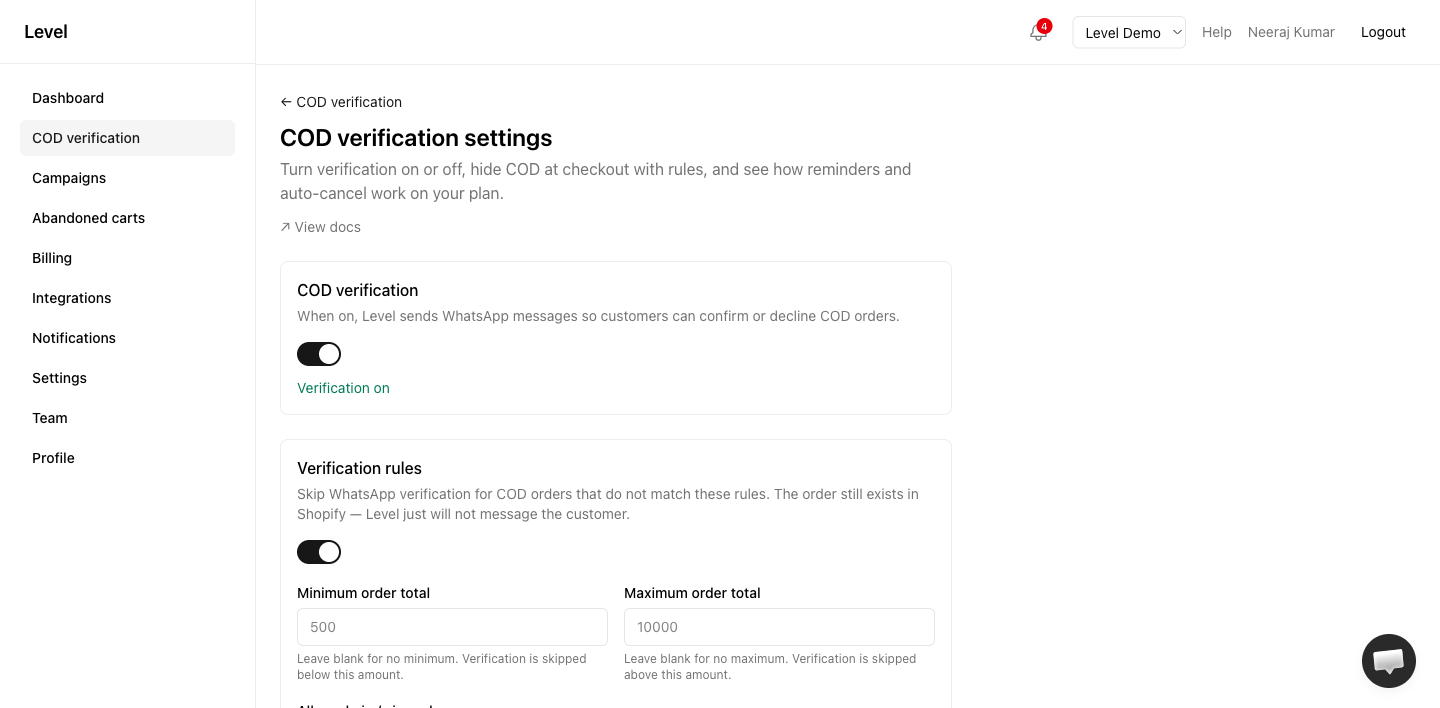
Decide who gets to see Cash on Delivery at checkout. When a cart matches your rules, the COD option simply isn’t shown — the customer pays online or doesn’t order.
Works on every Shopify plan; you don’t need Shopify Plus.
This is different from Verification skip rules: checkout rules stop the COD order from being placed at all, while skip rules only decide whether Level sends a WhatsApp message afterwards.
Set it up
- Open COD verification → Settings in app.uselevel.ai .
- Turn on COD availability at checkout.
- Fill in the rules you want (leave the rest blank).
- Click Save checkout rules. Level updates your Shopify checkout automatically — no theme changes needed.
Available rules
| Rule | What it does |
|---|---|
| Minimum order total for COD | Hide COD when the cart is below this amount |
| Maximum order total for COD | Hide COD when the cart is above this amount |
| Allowed PIN / ZIP codes | When set, COD is shown only to customers shipping to these codes |
| Blocked PIN / ZIP codes | Hide COD for these shipping codes |
| Blocked products | Hide COD if the cart contains any of these products |
| Blocked collections | Hide COD if the cart includes anything from these collections |
| Blocked customer tags | Hide COD for logged-in customers with any of these Shopify tags |
Leave a field blank to skip that rule. If you set several, COD is hidden as soon as any one of them matches.
Finding product and collection IDs
- Product — in Shopify Admin, open the product; the number at the end of the URL is the ID (
/products/1234567890→1234567890). - Collection — same idea under Products → Collections.
Enter multiple IDs separated by commas or spaces.
A note on customer tags
Tag rules only work for customers who are logged in at checkout — Shopify doesn’t know who a guest is. Common tags merchants use: fake-order, high-rto, blocked-cod.
Common setups
Only offer COD above a minimum. Set Minimum order total for COD to 500 — carts under ₹500 see prepaid options only.
No COD for heavy or fragile items. Add those product IDs to Blocked products.
Shut out repeat offenders. Tag risky customers in Shopify (e.g. high-rto), then add that tag to Blocked customer tags.
Serve only areas your courier covers for COD. Put those PIN codes in Allowed PIN / ZIP codes — everywhere else gets prepaid only.
Troubleshooting
”Rules saved but Shopify sync failed”
Level needs an extra Shopify permission to control checkout. If you installed Level before this feature existed:
- Open Integrations and click Reconnect Shopify.
- Approve the updated permissions in Shopify.
- Go back to COD settings and save again.
The error banner also includes a Reconnect Shopify now link. See Shopify permissions for the full list of what Level can access.
COD still shows at checkout
- Check the COD availability at checkout toggle is on.
- Check the test cart actually matches a rule (total, PIN code, products, and whether you’re logged in for tag rules).
- Changes take a few seconds to reach Shopify — test in a private browser window with a fresh checkout.
Plan availability
Available on all plans, including Free.
Related
- Verification skip rules — control WhatsApp messages after the order
- Risk & blocklists — block specific phones, emails, and IPs
- Reconnect Shopify
Need help for COD checkout rules?
- — live chat on this page
- Contact form — email the Level team
- Open Level app — in-app Help button for account-specific issues
- Troubleshooting guides